
Every active order, on one screen.
Status tiles on top, filters below, and every order in a table you shape yourself. Your team opens the day knowing what is waiting, what is in the building and what is on the way home.
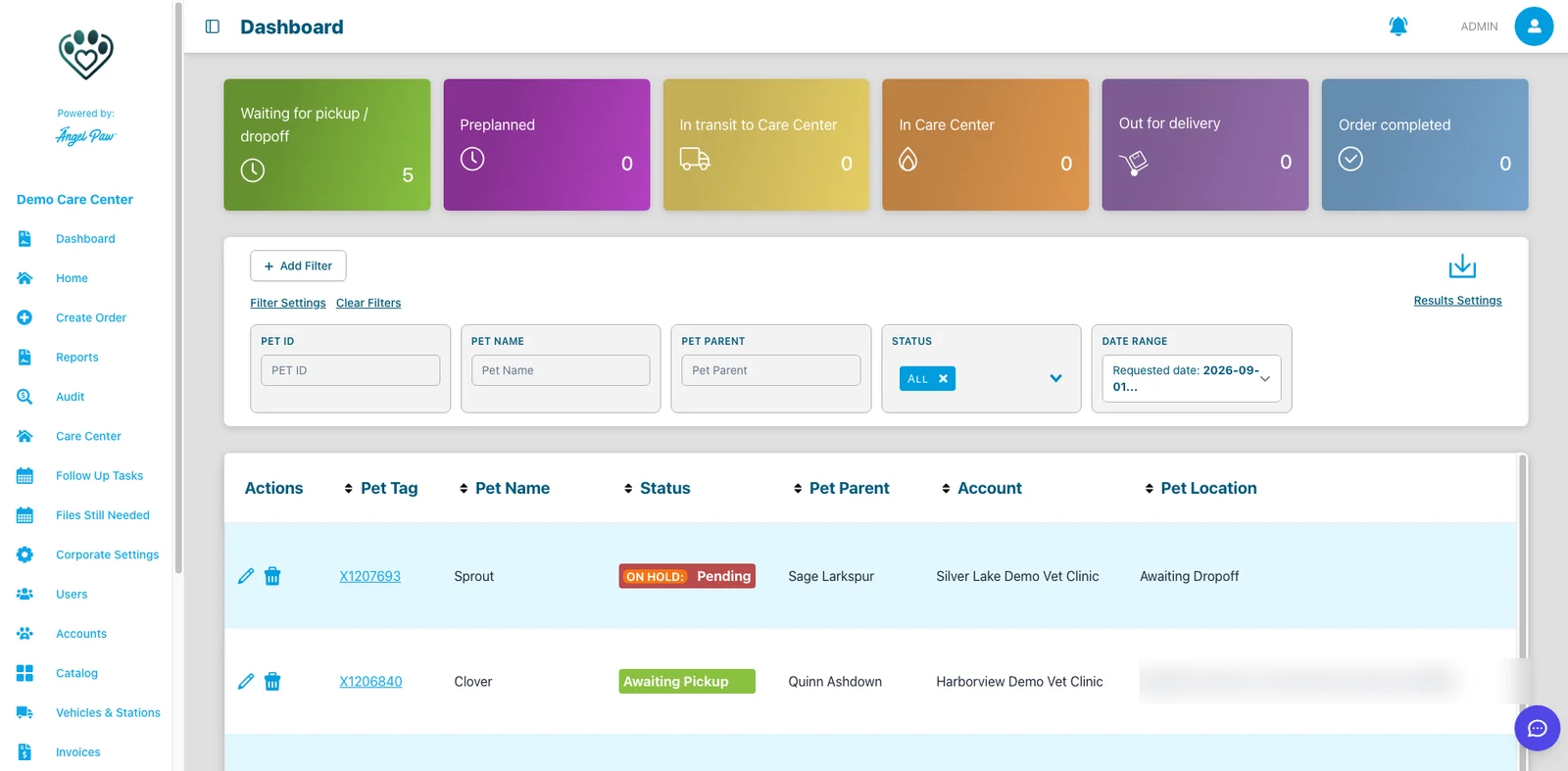
Real Angelpaw screen from a demo care center.
The whole journey, counted.
Six tiles show how many orders sit at each stage, so the busiest part of the day is visible at a glance.
Waiting for pickup / dropoff
Orders waiting to be collected or dropped off.
Preplanned
Preplanned orders, ready to convert into active orders.
In transit to Care Center
Pets on the way to your care center.
In Care Center
Pets in your care right now.
Out for delivery
Cremains on the way back to the family or clinic.
Order completed
Orders that have finished their journey.
Find any order in seconds.
Search by pet ID, pet name or pet parent, pick statuses and a date range, and add more filters when you need them.

A table that fits each role.
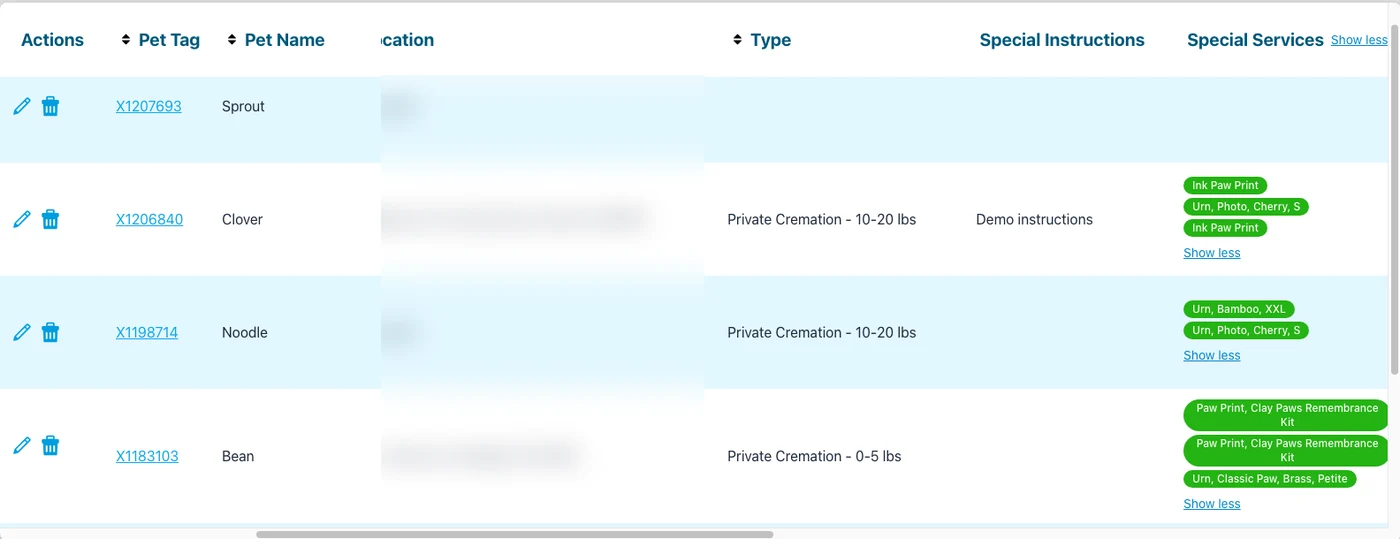
Results Settings opens the column chooser. Each user ticks the columns they need, such as Special Services, Breed, Weight, Routes and Assignee, and the selection is remembered.
- Special Services shown as full-name badges
- Show all or Show less for every row at once
- Print or export the current result set
Nothing slips between shifts.
The dashboard sits next to the queues your team works from every day.
Follow Up Tasks
Follow-up tasks on orders for managers and office staff.
Files Still Needed
Orders still waiting for requested personalization files.
Download menu
Export the filtered list: certificates, revenue summary, daily operations and items reports.
From one care center to many.
Care center managers can turn on a location dashboard. Regional managers with corporate access get the corporate dashboard across their care centers.
Location dashboard
For care center managers when the location dashboard is turned on.
- Built on the same order data
- For care center managers and Angelpaw IT
- Turned on per care center
Corporate dashboard
For regional managers and multi-location groups with corporate dashboard access.
- Several care centers in one view
- Same channel rules as every report
- Alongside Corporate Settings
Common questions
What is on the dashboard?
Status tiles on top, filters for pet ID, pet name, pet parent, status and date range, and the table of active orders.
Can each user choose their own columns?
Yes. Results Settings opens the column chooser, and each user’s selection is remembered.
Can we export what we see?
Yes. You can print or export the current result set, and the download menu exports the filtered list as reports.
Is there a dashboard for multiple locations?
Yes. Regional managers with corporate dashboard access see the corporate dashboard across their care centers.