
Know what you sold, to whom, and how.
One Reports screen answers how much you sold, to whom, through which channel, for which services, and how orders are moving. Pick the reports you want, filter once, and download the detail to Excel.
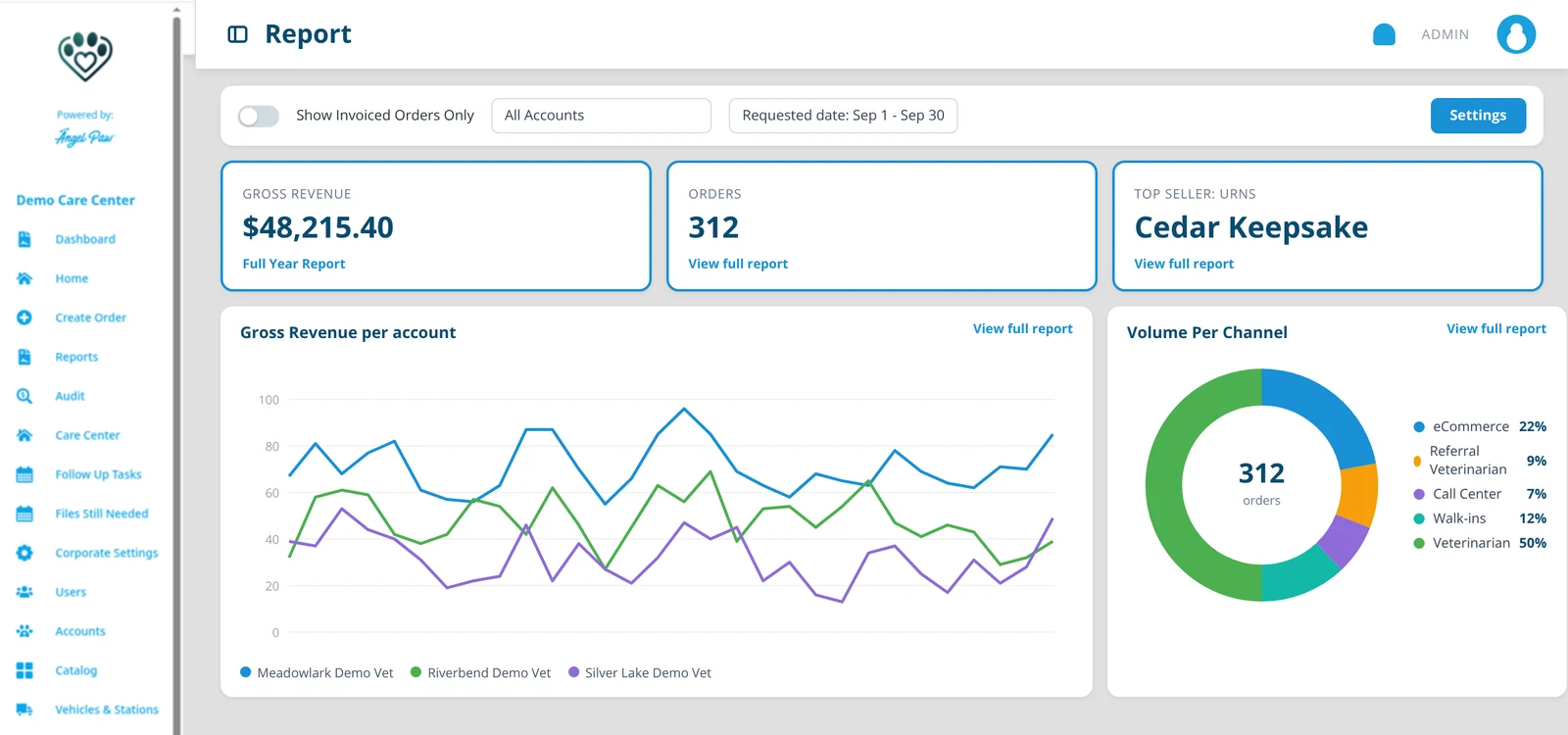
Illustrative mockup with fictional data.
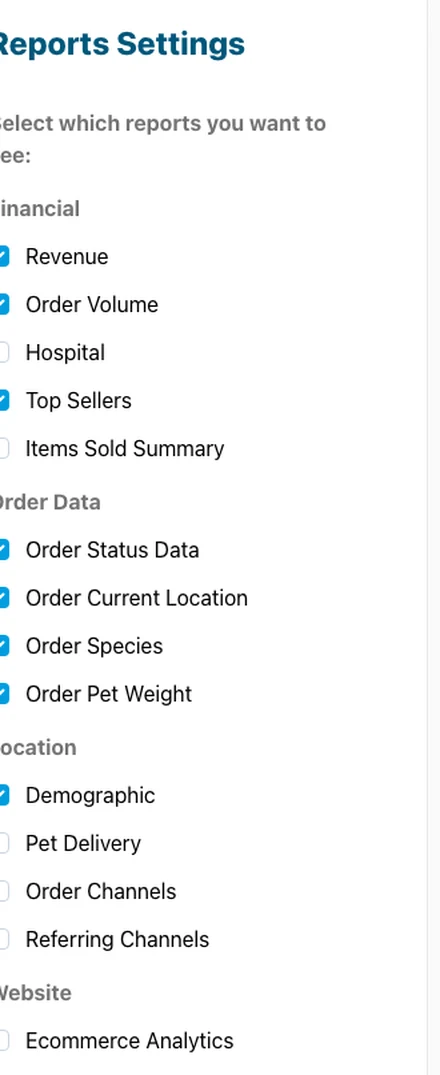
Pick the cards you need.
Tick a report in the Settings drawer to add its card to the page. Your selection is remembered, and every card opens a full report with volume, revenue and a three-month comparison.
Revenue
Gross or invoiced revenue and order count, with a day-by-day line per account.
Order Volume
Orders per service type, and orders and revenue per veterinary account.
Top Sellers
Best-selling items per category: services, urns, jewelry, engraving, nameplates and more.
Items Sold Summary
Item, quantity, min and max price and total, with per-order detail and an Excel download.
Order Status and Location
Where orders sit in the workflow, and where pets physically are right now.
Species and Weight
Volume and revenue by species and by weight band.
Demographic
Volume and revenue by pet parent city and ZIP code.
Pet Delivery
How cremains go back: pickup, delivery, shipping and more.
Ecommerce Analytics
Website sessions and web orders for the range.
Choose your reports, filter once.
Tick the reports you want in the Settings drawer. The sticky filter bar then applies to every report below it. Switch to invoiced orders only, choose accounts, and pick the date that matters for the question you are asking.
- Quick ranges: today, this month, last month, last 3 months
- Filter by category and custom group for care centers
- Full Year Report: revenue per account per month, per species and per service type
Five channels, one set of rules.
Every report, from the care center to the veterinary portal and the corporate view, classifies orders with the same shared rules. The first match wins.
eCommerce
Orders on your online or self-service retail account, or tagged Ecommerce.
Referral Veterinarian
Orders that carry the Vet Referral tag.
Call Center
Orders first registered by a call-center agent.
Walk-ins
Orders on your designated walk-in account, or with no account.
Veterinarian
Orders from any other hospital account.
Everyone sees what is theirs.
All portals render the same Reports screen. What changes is the data each signed-in user is allowed to see.
Admins, office staff and IT
Every account of the care center, full order totals and every report, including Top Sellers, Items Sold Summary, Order Channels and the Full Year export.
- Every account and full order totals
- Average Per Type on the pre-tax subtotal
- Items Sold Summary with order exclusions
Clinic users
Only the clinics they are attached to, and only the revenue billed to their account. Items the pet parent bought at the counter do not inflate the clinic’s numbers.
- Revenue scoped to account-billed lines
- Pet parent payment details hidden
- Same channel rules as the care center
Operations reports your team actually uses.
Shifts, corrections, downloads and cremation logs, from the same data.
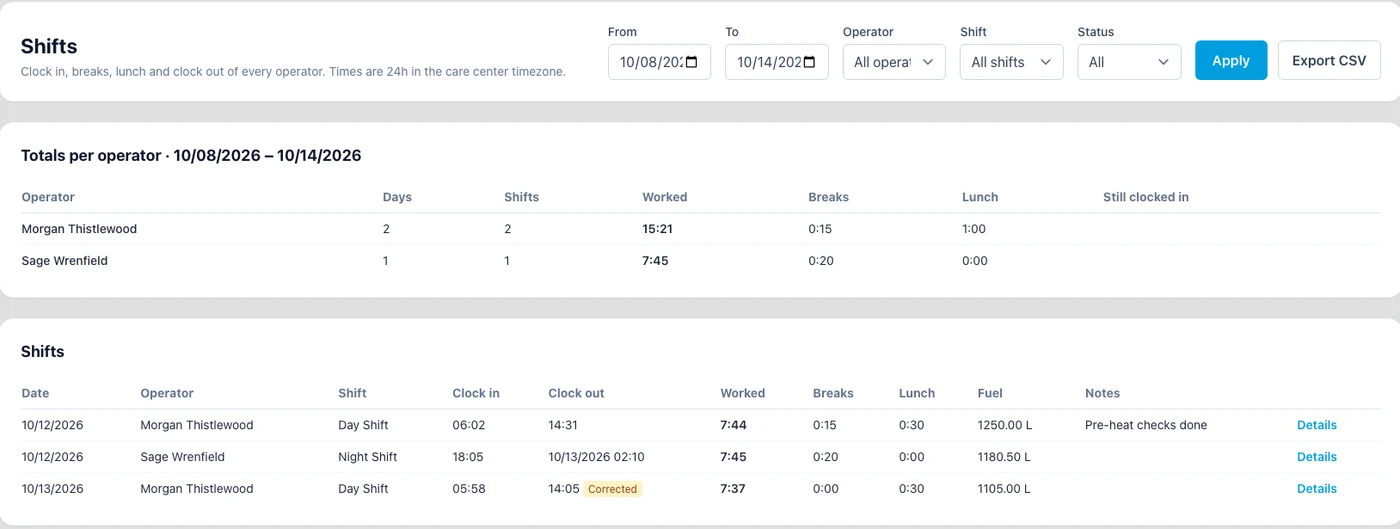
Clock in to clock out, reviewed in the office
Floor staff clock in and out in the Care Center app. The Shifts report shows totals per operator and one row per shift, with breaks, lunch, the fuel reading and notes.
- Filter by dates, operator, shift and status
- Open shifts show an On shift badge
- Export CSV for payroll and review
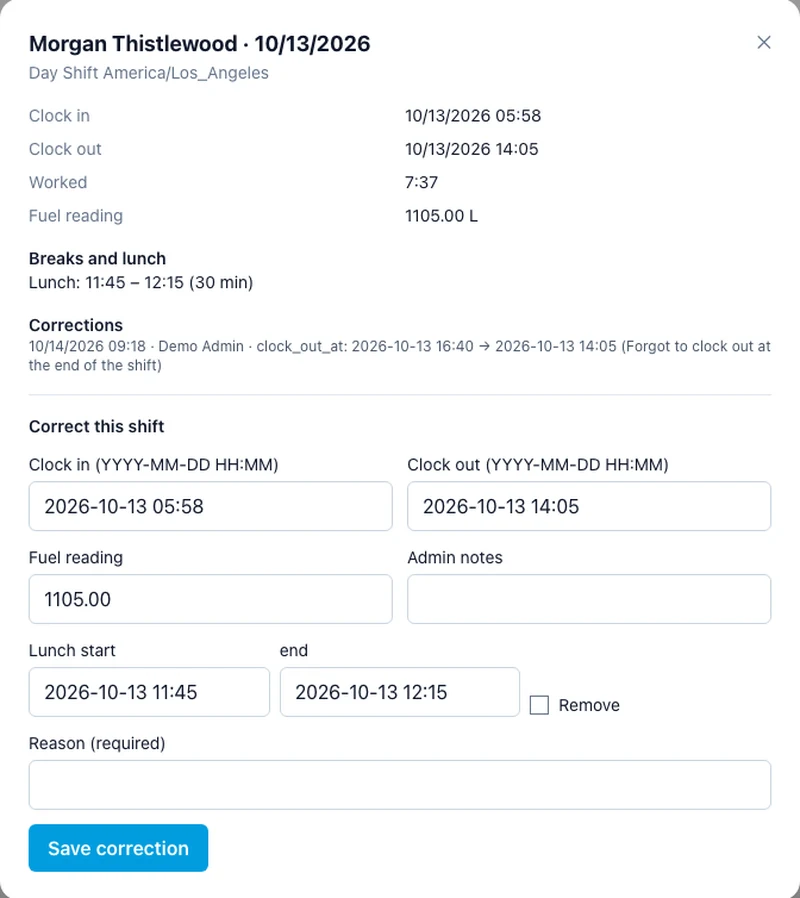
Every change keeps a trace
Administrators can correct clock times, breaks, the fuel reading and notes, or close a forgotten shift. A reason is required, and the old value, new value, who and when are all recorded.
- Corrected badge on changed shifts
- Corrections included in the CSV export
- Times checked before saving
The detail, ready for Excel
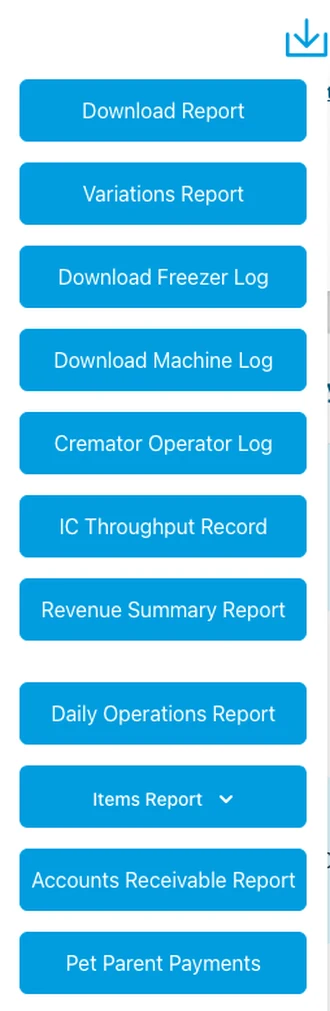
From the order list, download the reports your team works from, filtered the way the list is filtered, including the Name Plates and All Items cut lists with special instructions.
- Machine, freezer and daily operations logs
- Revenue summary and accounts receivable
- Pet parent payments
Paper cremation forms, built for you
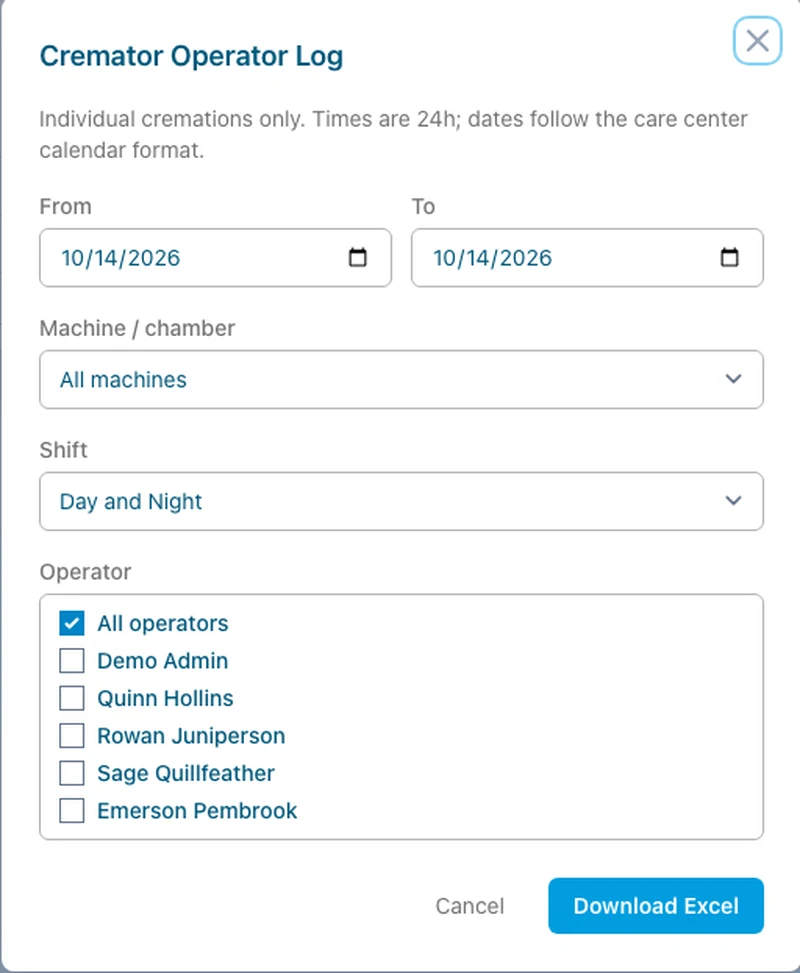
The Cremator Operator Log and IC Throughput Record are built from what staff already record: floor moves, machine temperatures, weights, pickup rounds and shift clock-ins. Pick the dates and download the log when you need it.
- Individual cremations only
- Pick dates, machine or chamber, shift and operators
- Download Excel
Real Angelpaw screens from a demo care center.
Bring the numbers to the team meeting.
When revenue, volume, channels and operations live in one place, the conversation moves from gathering numbers to acting on them.

Common questions
Which reports are included?
Revenue, Order Volume, Top Sellers, Items Sold Summary, Order Status, Order Current Location, Species and Pet Weight, Demographic, Pet Delivery, Order Channels and Ecommerce Analytics.
Can we export the data?
Yes. The Revenue card exports a revenue spreadsheet and the Full Year Report, Items Sold Summary has an Excel download, and the order list offers further downloads.
What do veterinary clinics see?
Only the clinics they are attached to, and only revenue billed to their account. Pet parent payment details are not shown in their exports.
How are orders assigned to channels?
With five shared rules checked in order: eCommerce, Referral Veterinarian, Call Center, Walk-ins, then Veterinarian. The first match wins.
Is there a report for staff shifts?
Yes. When shift tracking is on, the Shifts report lists every clock in, break, lunch and clock out, with totals per operator and a CSV export.